The short answer
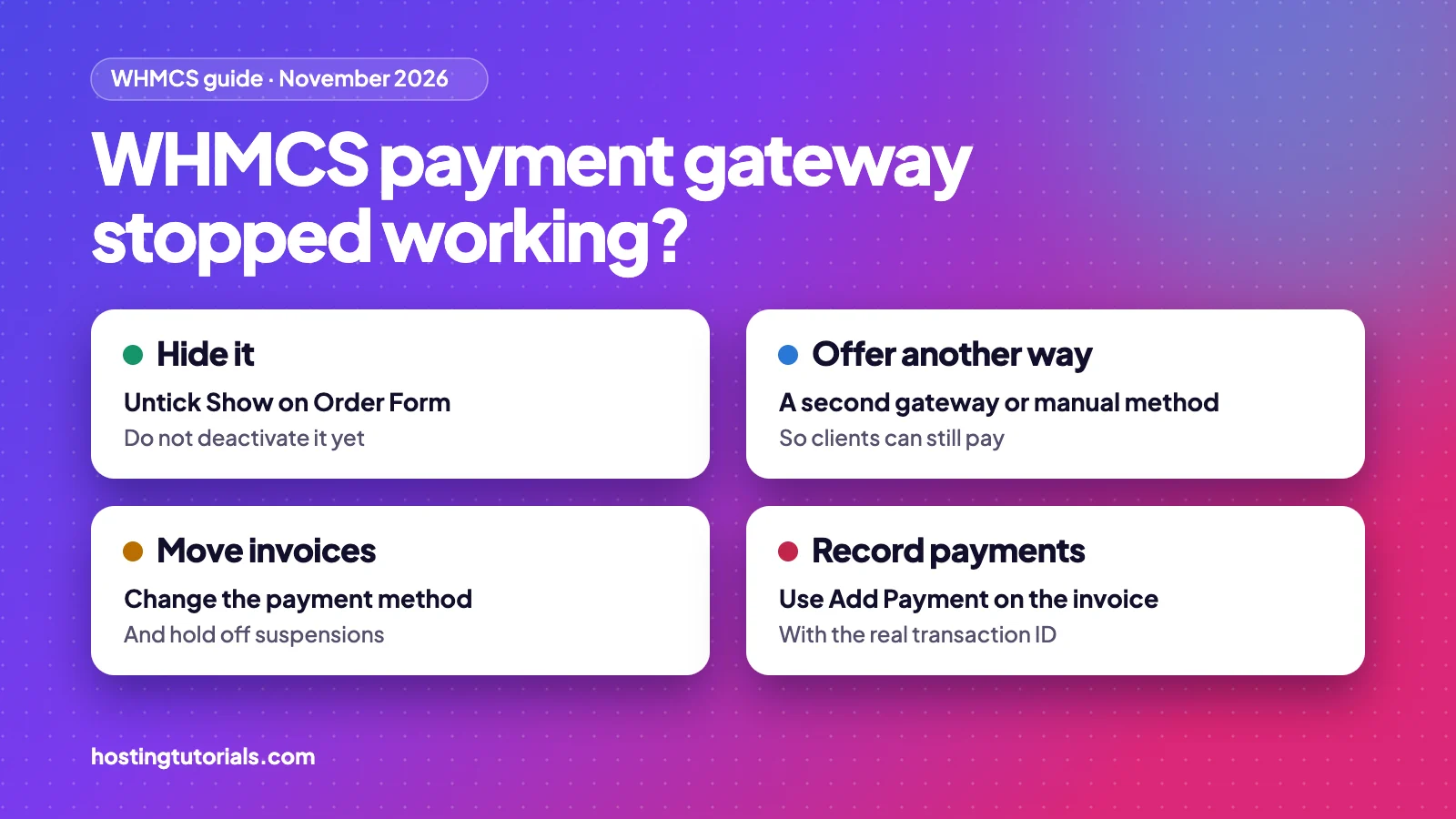
WHMCS payment gateway not working? Hide it instead of deactivating it, unless your provider says otherwise. Untick Show on Order Form, give clients another way to pay, and move unpaid invoices to that method. Record each outside payment with Add Payment on the invoice. Deactivate a gateway only when you are leaving it for good, because WHMCS then moves its records to another gateway and stops processing its payment notifications.
These steps should suit most gateways. We based them on the WHMCS 9.1 documentation and have not tested them on a live install. There is also a section for NOWPayments, which paused its WHMCS plugin in November 2026. Last checked: 7 November 2026.
Why is my WHMCS payment gateway not working?
The usual causes are a provider outage, wrong API keys, an outdated module, a blocked callback or a missing module file. Use this table to find your starting point.
| What you see | What it usually means | Start at |
|---|---|---|
| Your provider says its module is paused | The fix is on the provider’s side | Step 2 |
| Clients see an error on the payment page | A provider outage, wrong keys, or a module that does not suit your WHMCS or PHP version | Step 1 |
| It stopped after a WHMCS or PHP update | The module may not support the new version | Step 1, then ask the module developer |
| A client paid, but the invoice is still unpaid | The callback did not reach WHMCS, or WHMCS rejected it | Step 1, then Step 5 |
| The gateway has gone from your order form | Show on Order Form is off, or a product group restricts it | Check the gateway settings |
What is a WHMCS callback?
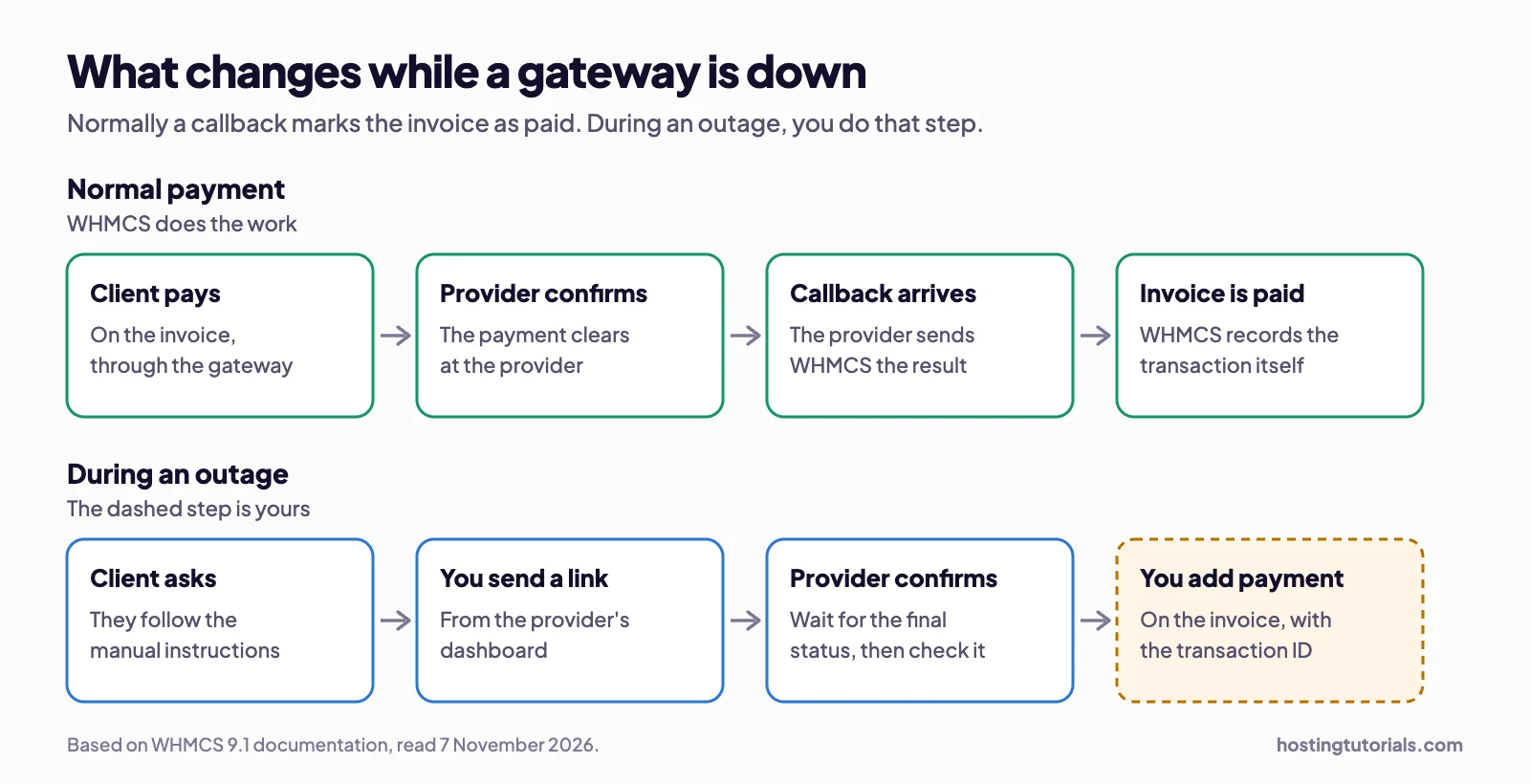
A callback is the message a payment provider sends to WHMCS when a payment changes status. WHMCS receives it at a file in /modules/gateways/callback, and that is what marks the invoice as paid. Some providers call it a webhook or an IPN (instant payment notification). If it fails, a client can pay successfully while the invoice stays unpaid.
Step 1: Find out where the problem is
The fix depends on whether the fault is at the provider, in the module or on your server.
- Check your email and the provider’s dashboard or status page for a notice.
- In WHMCS, open Billing → Gateway Log and read the entries from the time of the failed payment. An Invalid entry means the data did not match what WHMCS expected, such as a wrong invoice ID or amount.
- If the log shows nothing useful, go to Configuration → System Logs, open Module Log and set Module Logging to On. Repeat the problem, then set it back to Off. WHMCS’s log guide lists the admin and database permissions this needs.
- If a client paid and WHMCS shows nothing, WHMCS says to check the callback. Confirm that the provider sends it to the right file in
/modules/gateways/callback, and that a firewall or ModSecurity is not blocking it.
Step 2: Hide the gateway, do not deactivate it
Hiding takes one checkbox and is easy to undo. WHMCS says deactivation automatically reassigns services, invoices, transactions and pay methods to another gateway, and its migration guide uses it as part of a permanent move. In 2007, the WHMCS CEO gave a forum user who was retiring a gateway a similar tip: it is easiest to stop it showing on the order form.
- Go to Configuration → System Settings → Payment Gateways.
- Find the gateway that has stopped working.
- Untick Show on Order Form.
- Click Save Changes.
- Open your order form in a private window, and confirm the gateway has gone.
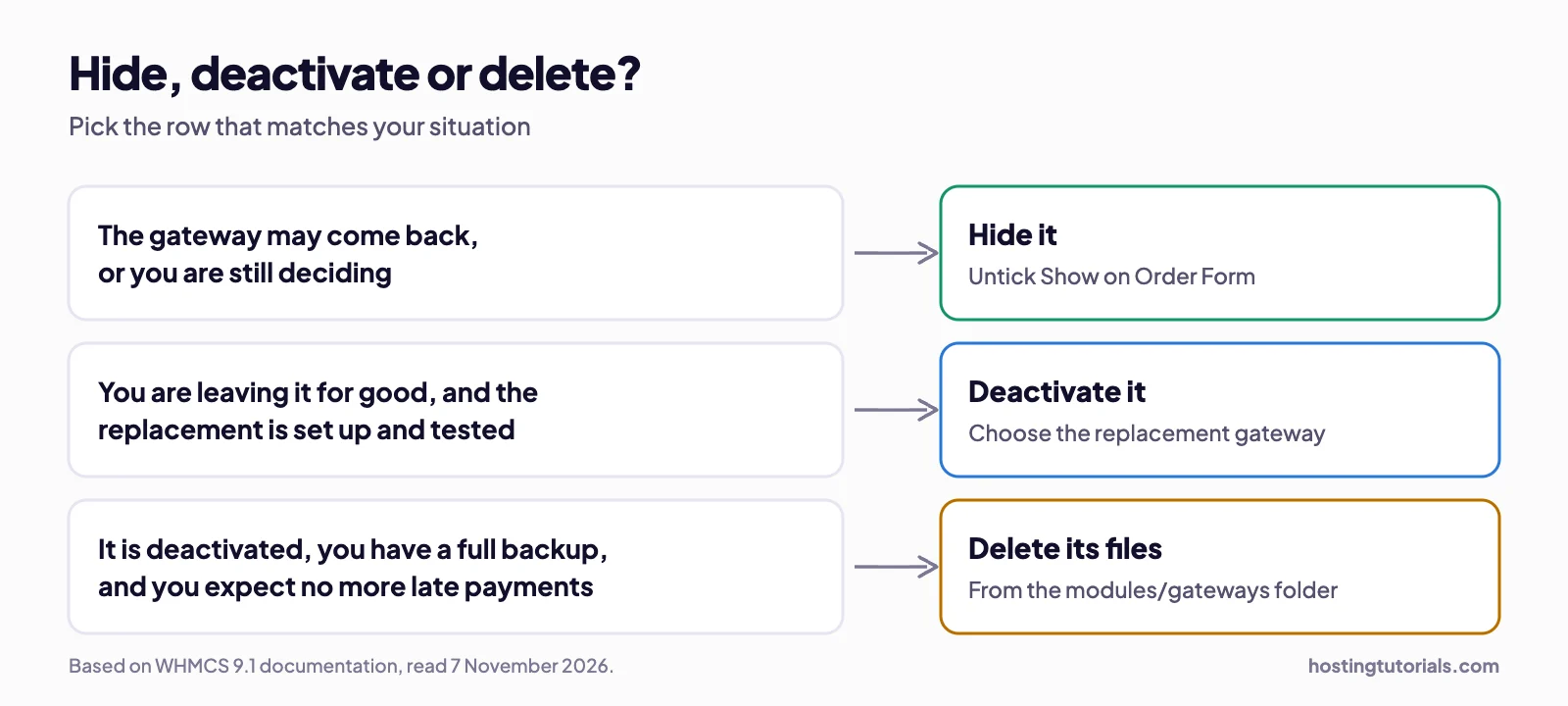
| Hide | Deactivate | Delete the files | |
|---|---|---|---|
| Use it when | The gateway may come back | You are leaving for good, and the new gateway is tested | It is deactivated, and nothing depends on it |
| New orders | Not offered | Not offered | Not offered |
| Existing records | Should stay on the gateway | Move to the gateway you choose | Already moved |
| Late callbacks | The module can still receive them | The callback stops, so the invoice may stay unpaid | Nothing is there to receive them |
| To undo it | Tick the box again | Reactivate, then move records back | Reinstall, then reactivate |
Late callbacks are the main risk. WHMCS explains that a “Gateway Module Not Activated” error in the Module Log means the provider is still sending notifications while the module is inactive. WHMCS’s sample callback file stops at that point too. So a payment that finishes after you deactivate may never mark its invoice as paid.
Your provider’s instructions come first. If it tells you to disable or remove the module, do that, even if this guide says otherwise. If it gives no instruction, ask whether the installed callback should stay active. Otherwise leave the module files in place. Late payments may still need the callback file, and WHMCS shows Module Not Found errors if an active gateway’s file is missing.
Step 3: Give clients another way to pay
If you have a second gateway, confirm that it shows on your order form, then go to Step 4. If not, set up a manual method. WHMCS’s Bank Transfer module shows your instructions on the invoice, and you record each payment yourself. You choose its display name, so it can cover any payment you handle by hand.
- Go to Configuration → Apps & Integrations, click Bank Transfer, then click Activate.
- Tick Show on Order Form.
- Set a clear display name, such as “Crypto (payment link by ticket)”.
- Add your instructions, then click Save Changes.
Sample instructions: Our online checkout for this payment method is paused for a short time. Open a ticket with your invoice number, and we will send you a secure payment link. We will mark your invoice as paid once the payment is confirmed.
Already use Bank Transfer for real bank payments? Use the Mail In Payment module instead. WHMCS says both modules are open source and can be duplicated on self-hosted installs.
Avoid posting one fixed crypto wallet address in your instructions. A separate payment link for each invoice makes each payment far easier to match.
Step 4: Move unpaid invoices and pause suspensions
Hiding a gateway should not change invoices that already use it, so move them yourself. With many invoices, turning on Clients Choose Gateway below saves time.
- Go to Billing → Invoices, and find unpaid invoices that use the hidden gateway.
- Click Edit beside an invoice in the list, because invoices open in view-only mode. Then open the Options tab.
- Change Payment Method to your working option, then click Save Changes.
- On the invoice summary, choose an email template under the status, and click Send Email so the client sees the new instructions.
This change should work on WHMCS 9. Its invoice settings table marks the invoice date, number and tax rate as locked after an invoice leaves Draft, but not the payment method. If you turn on Clients Choose Gateway in General Settings → Invoices, clients can change it themselves on each invoice.
Services, addons and domains should also stay on the hidden gateway, so new renewal invoices can still use it. Check new invoices each day until the gateway returns.
Do not let your outage suspend clients. WHMCS suspends services once the Suspend Days period passes after the service’s Next Due Date. For one client, tick Override Auto-Suspend on their service and enter a date. For everyone, raise Suspend Days in Configuration → System Settings → Automation Settings, and change it back afterwards. Check Termination Days, Add Late Fee Days and Enable Auto Cancellation on the same page too, because they are separate settings.
Step 5: Take the payment and record it
- Create a payment link in your provider’s dashboard for the exact invoice amount. Put the WHMCS invoice number in the order or reference field.
- Send the link in a support ticket, so that you keep a record.
- Wait until the provider shows the payment as complete, then check the amount received.
- In WHMCS, open the invoice and click the Add Payment tab.
- Enter the date, payment method, transaction ID and amount in the invoice currency, then click Add Payment.
Copy the transaction ID exactly as your provider shows it. WHMCS’s callback tools can stop a duplicate with the same ID, but a new payment link has its own ID. So if a client started a payment before the outage, check whether it went through before you send a link.
- One payment for several invoices: at Billing → Transactions List, click Add Transaction, and enter the invoice numbers separated by commas in Invoice ID(s).
- A payment with no invoice: add it to the client’s account as credit.
Tell your clients
A short notice saves support tickets. WHMCS suggests Announcements for issues that do not directly affect client services, and Network Issues for those that do. Say what changed, how to pay now and when you will update them. Repeat only what your provider has confirmed.
Sample notice: One of our payment methods is paused for a short time while our provider updates its WHMCS module. Your services are not affected. To pay now, open a ticket with your invoice number, and we will send you a secure payment link. We will post here when normal checkout is back.
NOWPayments WHMCS plugin paused: what to do
If your NOWPayments WHMCS plugin is paused, hide the gateway, ask support whether installed copies still work, and send NOWPayments invoices until the update arrives.
Status on 7 November 2026: we have seen no notice that the plugin is back. We will update this section when NOWPayments confirms that a new version is available.
In November 2026, NOWPayments told partners by email that it was temporarily disabling its WHMCS plugin to “roll out an update with enhanced security measures”. It expected the new version “within 2 business days”, and said it would share the steps to resume. We found no public notice on 7 November 2026, so check your own email and dashboard.
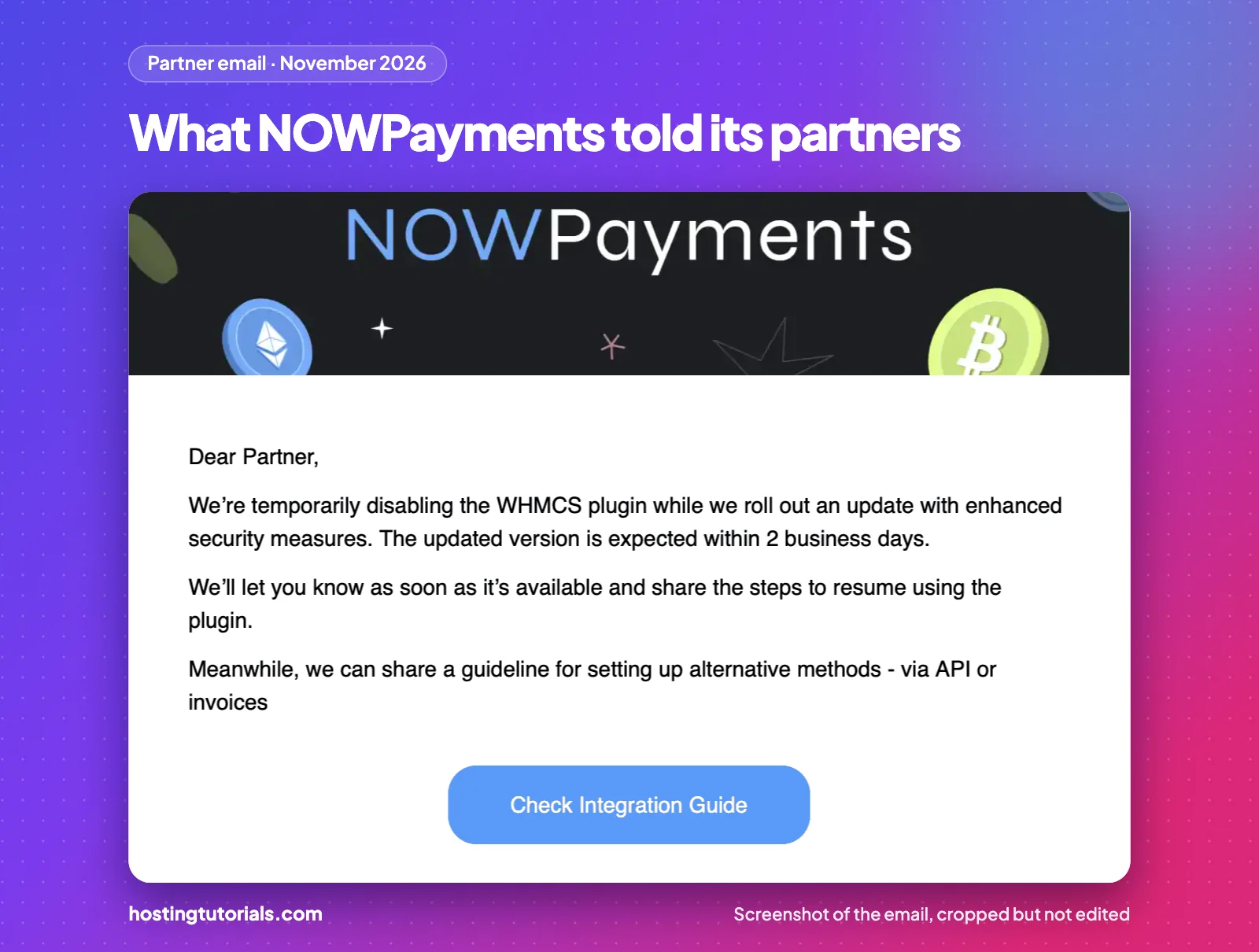
The email does not say whether copies that are already installed keep working. Ask NOWPayments support, and follow what it tells you. Until you hear back, hide the gateway and use the steps above.
NOWPayments invoices are the simplest stand-in. Its help centre says they need no integration: sign up, enter your wallet address, create an API key, generate a payment link and send it to your customer. The same email offers a guideline for alternatives, via API or invoices.
| NOWPayments status | What it means | What to do in WHMCS |
|---|---|---|
| Waiting | The client has not sent payment yet | Nothing yet |
| Confirming, Confirmed or Sending | The payment is on its way to you | Nothing yet. NOWPayments advises against acting on Confirming |
| Partially paid | The client sent less than the price | Ask for the balance before you mark the invoice as paid |
| Finished | The funds reached your wallet | Check the amount, then use Add Payment |
| Failed | The payment did not complete | Contact NOWPayments support before you send a new link |
| Refunded | The funds went back to the client | Do not add a payment |
| Expired | No funds arrived within 7 days | Send a new link |
Check the real amount before you record it. NOWPayments says the Amount Sent column shows what a client needs to pay, not what has arrived. Open the payment details to see the amount actually paid. Add it to WHMCS in the invoice currency, and use the Payment ID as your transaction ID.
Before you install anything, ask NOWPayments which file is the new version and which WHMCS versions it supports. On 7 November 2026, NOWPayments’ plugin page listed version 1.2, last updated on 31 March 2022. That page and the WHMCS Marketplace listing both showed support up to WHMCS 7.9.
When the gateway comes back
- Read your provider’s release notes, and follow its steps exactly.
- Back up your WHMCS files and database.
- Install the update. Check that your API key and callback secret are still saved, and replace them if your provider asks you to.
- Make a small real payment on a test invoice. Confirm that the Gateway Log shows success and that the invoice is paid.
- Tick Show on Order Form again.
- Compare your provider’s payment list with WHMCS for the outage period. Each finished payment should appear once.
- Move remaining unpaid invoices back if you wish, then untick Show on Order Form for your manual method.
- Reset Suspend Days, and post a short update for your clients.
What do common WHMCS gateway errors mean?
Most WHMCS gateway errors point to a missing or inactive module, a wrong URL or secret word, or a stray file. Each error below links to the full WHMCS guide.
| Error | What it means | Fix |
|---|---|---|
| Error: Module Not Found, or “The Payment Solution module could not be loaded” | The module’s PHP file is missing from /modules/gateways | Restore the file, or deactivate the gateway and move to another one |
| Gateway Module ‘module_name’ Not Activated | The provider is still sending notifications, but the gateway is inactive | Activate it, or ask the provider to stop the notifications |
| Invalid Access Attempt | You may be logged in to the Admin Area at the wrong URL | Use the exact WHMCS System URL from General Settings |
| Configuration Function (_config) not found | A module lacks a required function, or a stray file is in /modules/gateways | Ask the module developer, or remove the stray file |
| Remote Transaction Failure. Please Contact Support. | A tokenization gateway returned an error with no client-friendly message | Read the Result and Debug Data columns in the Gateway Log |
| MD5 Hash Failure | The secret word does not match at 2CheckOut or Skrill | Copy the secret word into WHMCS again |
| A blank page when paying | Usually two copies of the same file in the gateway modules folder | Remove the duplicate, then try again |
How to check a gateway module before you rely on it
These general checks apply to any gateway module, from any provider.
- Last update: a module that is years old may not suit current WHMCS
- Version support: it should list your WHMCS and PHP versions
- Callback checks: WHMCS’s sample code verifies that each callback really came from the provider
- Key handling: API keys should stay on the server, never in a URL or page source
- Logging: payments and failures should appear in the Gateway Log
- A backup method: keep a second payment option ready before you need it
Frequently asked questions
Should I deactivate a WHMCS gateway that has stopped working?
Not if it may come back, unless your provider tells you to. Deactivation moves services, invoices, transactions and pay methods to another gateway, and WHMCS uses it for permanent moves. Untick Show on Order Form instead, so that new clients cannot choose it while your existing records stay in place.
Does hiding a gateway change existing invoices?
It should not, although we have not tested this. Show on Order Form controls whether the gateway appears on the order form and in the Client Area. Existing invoices and services should stay on it, so move unpaid invoices to a working method on each invoice’s Options tab.
How do I add a manual payment to a WHMCS invoice?
Open the invoice and click the Add Payment tab. Enter the date, payment method, transaction ID and amount, then click Add Payment. For one payment across several invoices, use Add Transaction at Billing > Transactions List, and enter the invoice numbers separated by commas.
Why is a paid invoice still unpaid in WHMCS?
Usually the callback did not reach WHMCS, or WHMCS rejected it. Check Billing > Gateway Log at the time of payment. Then check the callback address, and whether a firewall or ModSecurity blocks it. Confirm the payment with your provider before you add it by hand.
Can I keep taking payments if my only gateway is down?
Yes. Set up the Bank Transfer module as a manual method with clear instructions, take the payment through your provider’s dashboard, then record it with Add Payment. This is slower, so use it only until your gateway returns.
Will clients be suspended while my gateway is down?
They can be, if automatic suspension is on. Give one client more time with Override Auto-Suspend on their service, or raise Suspend Days in Automation Settings for everyone. Change the setting back once payments work again.
What does Gateway Module Not Activated mean in WHMCS?
It means the payment provider is still sending notifications to the callback file, but the gateway is not active in WHMCS. Activate and configure the gateway to keep processing them. If you no longer use it, ask the provider to stop the notifications.
Has NOWPayments paused its WHMCS plugin?
In November 2026, NOWPayments told partners it was temporarily disabling the plugin to roll out an update with enhanced security measures. It expected the new version within 2 business days. Check your NOWPayments email and dashboard for the current status and the steps to resume.
How we made this guide
Who: the HostingTutorials team. How: on 7 November 2026 we read the WHMCS 9.1 documentation and troubleshooting guides, WHMCS’s sample gateway module, NOWPayments’ help pages and a NOWPayments partner email, which is shown above. The other sources are listed below. What we did not test: we did not run these steps on a live WHMCS install, and we made no real payments, so your screens and results can differ. An AI assistant helped with research, drafting and the diagrams, and the site owner approved the final article. Why: WHMCS explains permanent gateway moves in detail, but says little about short outages.
Gateways and WHMCS change often. If something here is out of date or wrong, tell us on our contact page and we will correct it and note the date. Read more about how we write our guides.
Sources
- WHMCS: Payment Gateways and Migrate Payment Gateways
- WHMCS: Logs and Unrecorded Transactions
- WHMCS: Bank Transfer and Mail In Payment
- WHMCS: Invoice Management, Transactions and Invoice settings
- WHMCS: Automation Settings and Products/Services tab
- WHMCS: Announcements and Network Issues
- WHMCS: Gateway Module Activation Errors and Module Not Found Errors
- WHMCS developers: Callback files and sample gateway module
- WHMCS community: CEO reply on hiding a gateway, 2007
- NOWPayments: How to integrate, payment statuses and integration practices
- NOWPayments: WHMCS plugin page and WHMCS Marketplace listing